If you file a document in enaio® but do not want to decide yet in which cabinet, folder, or register to place it or which document type to assign, you can cache it in the enaio® client filing tray. Clicking the  Filing Tray icon in the View ribbon tab header will open the filing tray.
The filing tray can only be accessed by you. For example, you can use this space to store all documents that other employees are not supposed to be able to access yet. Documents in the filing tray are not included in searches.
When creating new documents or storing existing files in the filing tray, you must first decide whether or not you want to assign an object type to the document or file. If you want to assign an object type, you can proceed in the same way as when creating or filing documents in folders or registers, except that you select Filing tray as the filing location. Read on to learn how to create documents without type in the filing tray.
To create a document without type in the filing tray, follow these steps
-
Open
Filing Tray via the View ribbon tab. -
You have the following options for creating a document without type in the filing tray:
 via the ribbon tab or via the context menu
-
On the Tray ribbon tab or Start ribbon tab, click the
 Object button or select New from the context menu.
A list containing the available object types will open.
-
Select without type from the list.
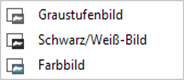
The select module dialog will open.
-
Select a module.
The selected image module will open with an empty window.
The Image editing ribbon tab will be displayed in the header of enaio® client.
-
Click the
 Import icon in the Image editing ribbon tab.
The file selection dialog opens.
-
Select one or more image files from your file storage system and click the ↩ enter key or double click to confirm the selection. The images must be available as TIFF, JPEG, BMP, PCX, or TARGA files. They will be converted to the module's file format. Color images that you, for example, import into the black-and-white module will be converted into black-and-white images.
You can only import images requiring less than half of the available memory when uncompressed.
The image(s) will be uploaded to the filing tray and displayed in the previously empty window.
-
The functions in the Image editing ribbon tab allow you to edit the image document before filing it.
The following functions are available:
Ribbon group Description Import
Import
Opens the file selection dialog to import image files from the local file storage system into the image document.

Scanning
Opens the menu of the connected scanner. If no scanner is connected or if you do not have the corresponding rights, the function remains inactive.

File
Click the File button to file the image document to the folder, register, or filing tray. Changes to the image document are saved when it is filed.
Page 
Remove
You can delete pages from an image document. Clicking the Remove button opens a menu with the following options:
-
Current page
-
Delete beginning with current page
-
All pages

Previous
Displays the previous page in a multi-page image document.
Press and hold Ctrl+Shift to move a marked page within the document.

Next
Displays the next page in a multi-page image document.
Press and hold Ctrl+Shift to move a marked page within the document.

First
Displays the first page in a multi-page image document.If you select Cross-document in the View ribbon group of the basic settings, you can scroll from the first page of a document to the last page of the previous document in the hit list.

Last
Displays the last page in a multi-page image document.
If you select Cross-document in the View ribbon group of the basic settings, you can scroll from the last page of a document to the first page of the next document in the hit list.

Go to...
In multi-page image documents, this opens a selection menu where you can choose which page to display.

Export
Opens the export menu. In this menu you can specify:
-
which pages should be exported
-
the file name of the image document to be exported
-
the file format of the image document to be exported
-
the export directory
-
whether Annotations on Layers should be transferred to the image document to be exported

Send as e-mail
Generates an e-mail that contains the image document as an attachment. You can choose either:
-
Current page or Multiple pages
-
JPG file format and PDF
Image 
Rotate clockwise
Rotates the selected page 90° to the right (clockwise).

Rotate counterclockwise
Rotates the selected page 90° to the left (counterclockwise).

Invert
Inverts the colors of the selected image.
Zoom 
Zoom in
Zooms into the view of a page in the display window.

Zoom out
Zooms out of the view of a page in the display window.

Window width
Adjusts the size of the view of a page to the width of the display window.

Fit
Fits the view of a page into the display window.
Selection 
Select
Allows you to copy a selected page range or the entire page to the clipboard.
The following functions are available:
-
Copy image content for external applications
Hold down the mouse button and move the mouse to select a page range. Press Ctrl+C to copy the section to the Windows clipboard. Form there you can copy the area into external applications.
-
Copy image content for enaio®
Select a range or an entire page and copy it by pressing Ctrl+C. Press Ctrl+V to insert the copied content to the same or another image document or to replace the current page with the copied content.
-
Copy image selection coordinates
The position of the marked area can be copied to the clipboard by pressing Alt+C. This data can be used in enaio® capture for field configuration.

Zoom in
Enlarges the content of a rectangle drawn by holding and moving the mouse to the size of the display window.

Move
Allows you to move an image section within the display window by holding down the mouse button.

Recognition
Activates OCR recognition mode (see Optical Character Recognition (OCR)).
Scanner See Caching Documents in the Filing Tray for a detailed description of the functions of the Scanner menu group.
Configuration
Lists saved scan settings that you can select and call up with a single click.
These components are not supported by all Twain scanners.

Scan parameters
Opens the settings dialog of a scanner, provided it is integrated in the system or at the workstation.

Select scanner
Lists scanners that are connected to your system or workstation via a Twain interface and which are ready to be selected with a click of the mouse.

Options
Opens the Options menu where users can configure the insertion, deletion, and rearrangement of scanned content in image documents (see also Caching Documents in the Filing Tray).
View 
Pages
Displays or hides thumbnail images of the document pages on the left side of the display window. If you drag the border to extend the area, several preview images are displayed next to each other.

Overview
Opens an overview window with a thumbnail image of the respective image document. A frame is displayed in the overview window that traces the section of the image document contained in the view window. If the frame does not contain the entire document or page, you can use the cursor to enlarge the size of the frame just like you would in move mode. The display will be adjusted accordingly.
For multi-page image documents, the respective page is displayed.

Animation
Displays the images of the image document in quick succession.

Properties
Opens a list containing information about the displayed image document, such as the file size and compression method.

Settings
Opens a menu for the basic settings of the document display window, such as the size of the preview images, the scroll sensitivity, or cross-document scrolling (see Document Display Window).
-
-
To complete the action, click the
File icon in the Image editing ribbon tab.
The document is filed to the filing tray.
If you import files using an image module, they will be saved in the file format of the respective module. For example, color images are converted to grayscale images using the Grayscale Image module.
via drag and drop or copy and paste
Alternatively, you can drag a file from the file storage system onto the filing tray window and drop it. In the menu of available object types that opens, select without type.
Instead of dropping a file by drag and drop, you can also use copy and paste. Copy a file in Windows Explorer with Ctrl+C, open the filing tray in enaio® client, and paste the file there with Ctrl+V.
If a file cannot be imported due to its file format, you will be notified of this.
using enaio® for-outlook
Using the optional extension enaio® for-outlook
 (formerly enaio® outlook-web-add-in), you can transfer one or more e-mails from the new Microsoft Outlook to the tray in enaio® client (see Filing E-Mails with enaio® for-outlook).
enaio® for-outlook does not support the classic version of Outlook.
-
The content of the enaio® client filing tray is synchronized with the content of the internal tray of enaio® webclient, enaio® webclient as a desktop application, and enaio® mobile and vice versa.
enaio® supports file extensions containing more than ten characters and Unicode characters.
Please note that the maximum supported file size depends on a number of a different factors. This includes the file type, the file content, the specific use case, and the client used.
 on the right.
 areas. Use the toolbar to show all hidden areas at once:
