Filing E-Mails
enaio® webclient, enaio® webclient as a desktop application, and enaio® mobile only support the *.eml file format for filing e-mails. The administrator specifies whether and what type of e-mails can be created at a filing location in enaio®. Similarly, the number of e-mails that can be filed at a location may be limited. There are various options available for filing e-mails. E-mails are filed in the *.eml file format in the enaio® filing system no matter what filing method you choose in enaio® webclient, enaio® webclient as a desktop application, and enaio® mobile.
 Filing e-mails from Microsoft Outlook via drag-and-drop
Using the Outlook Add-In for drag and drop, you can move an e-mail from the classic Microsoft Outlook to enaio® webclient or desktop application of enaio® webclient using drag-and-drop.
Drag-and-drop is not supported in enaio® mobile.
To create an e-mail via drag-and-drop, follow these steps
Microsoft Outlook and the Outlook Add-In for drag and drop must be installed.
The add-in can be installed by your administrator and is described in MSI Package Outlook Add-In for drag and drop  .
.
-
Open a location.
-
Click the
 Create icon in the content area. Alternatively, you can also use the
  New function in the
  More actions menu or the context menu.
To open the context menu:
-
right-click in the empty area in the content area.
-
select a folder or register in the navigation area of the filing location and then right-click.
The selection menu containing the available register and document types opens.
-
-
Click the required e-mail document type in the selection menu.
The Creation dialog with an index data form and an Add content area with a
 Plus icon will open in the workspace.
 -
Drag an e-mail from Microsoft Outlook and drop it in the area shown with the
Plus icon.The e-mail is loaded and displayed as a thumbnail preview in the Add content area.
The metadata of the e-mail is automatically transferred to the index data form.
-
You can edit the index data of the e-mail before filing it. Edit the index data of the e-mail (if necessary) and then click the
 Save icon.
The e-mail is filed and displayed in the content area of the filing location.
Filing e-mails from the local file system in *.eml format
Create a new object in enaio® webclient, in enaio® webclient as a desktop application, or in enaio® mobile and upload an e-mail in *.eml format; its metadata is automatically transferred to the index data form.
To create *.eml e-mails, follow these steps
-
Open a location.
-
Click or tap the
Create icon in the content area. Alternatively, you can also use the New function in the More actions menu or the context menu.To open the context menu:
-
right-click, or press and hold in enaio® mobile, in the empty area in the content area.
-
select a folder or register in the navigation area of the filing location and then right-click, or press and hold in enaio® mobile, the entry.
The following applies if you are using enaio® mobile on a smartphone:
On smartphones, the navigation and content areas are not placed next to each other due to space constraints. You can switch to the navigation area by tapping the
 Register tree icon in the title bar of the filing location. Tap the
  Arrow icon to return to the content area.
The selection menu containing the available register and document types opens.
-
-
Click the required e-mail document type in the selection menu.
Your administrator will tell you which document type is available for filing e-mails in the *.eml file format.
The Creation dialog with an index data form and an Add content area with a
Plus icon will open in the workspace. -
Click or tap in the area with the
Plus icon in the dialog and select an *.eml file from the local file system from the selection dialog. Alternatively, you can drag and drop an *.eml file onto the area using the Plus icon.The following applies if you are using enaio® mobile:
-
On smartphones, open the Add content area by tapping the
 Plus icon in the title bar of the Creation dialog.
 -
The drag-and-drop function is not supported in enaio® mobile.
-
Alternatively, you can share a file with another app on your device in enaio® mobile. The file is then automatically loaded in the Add content area in enaio® mobile.
The *.eml file is loaded and displayed as a thumbnail preview in the Add content area.
The metadata of the e-mail is automatically transferred to the index data form.
-
-
If necessary, edit the content of the index data fields.
-
Click the
Save icon.
The e-mail is filed and displayed in the content area of the filing location.
Filing e-mails from the new version of Microsoft Outlook
The optional extension enaio® for-outlook (formerly enaio® outlook-web-add-in) allows you to save one or multiple e-mails from the new version of Microsoft Outlook to enaio®. The feature is integrated into the Microsoft Outlook reading pane. You can find information on how to add this feature in the new Outlook in Microsoft’s product help (see Microsoft support ). enaio® for-outlook supports all enaio® clients.
The following applies to the use of enaio® for-outlook on Android or iOS:
Since the new Microsoft Outlook on Android or iOS does not support extensions like enaio® for-outlook, the instructions described here cannot be performed on mobile devices running Android or iOS. E-mails that were stored with enaio® for-outlook under Microsoft Windows in enaio® are also available in enaio® mobile.
If enaio® for-outlook does not display in Microsoft Outlook, click the  Apps icon in the header of the Outlook reading area, and then, in the menu that opens, click the
  enaio® logo enaio® for-outlook. Click the
  Pin icon to pin enaio® for-outlook to the Microsoft Outlook interface.
-
Your administrator needs to provide enaio® for-outlook for the new Outlook and add you to the group of authorized users.
-
enaio® for-outlook needs to be integrated and opened in the new Outlook.
-
If you have not yet logged in to enaio®, you will need your enaio® login data.
To file one or more e-mails in enaio® using enaio® for-outlook, follow these steps
-
In the new Outlook, select one or more e-mails that you want to file in enaio®.
-
Depending on your system configuration, you may still need to log in to enaio®.
You can tell whether you are logged in or not, for example, by whether or not you can select a filing location in the Recent or Favorites sections in enaio® for-outlook.
If you are not logged in, click or tap the
 Login icon to log in.
The enaio® login screen opens.
-
Enter your enaio® user name and the password in the corresponding fields of the login form and then click (or tap) the Log in button.
If you are unable to log in, clear your browser's cache and try logging in again.
You will be logged into enaio® and can now file e-mails in enaio®.
-
You have the following options for filing e-mails in enaio®:
-
Internal tray of enaio® webclient
If you are not yet sure where you want to permanently file the e-mails in enaio®, you can temporarily store them in the enaio® webclient internal tray and move it to the desired location later. To do so, click (or tap) the Send to tray button.
The email(s) are forwarded to the enaio® tray without any additional steps.
The e-mail(s) are assigned in Microsoft Outlook to the category Created in enaio®.
-
Recent
You can file the e-mails in one of the ten most recently used filing locations. In the Recent tab, select the desired location.
- Favorites
You can file the e-mails in one of the locations that you have previously marked as a favorite in enaio®. In the Favorites tab, select the desired filing location.
If you have selected multiple e-mails, the Recent and Favorites tabs will only display filing locations that allow you to save multiple e-mails.
-
-
You can use the
 Search field to shorten the length of lists. You can update the display of the filing lists by clicking (or tapping) the icon.
 Refresh locations
Once you have selected a location, it will remain preselected in the selection box for the next eight hours. This means that even if you exit or close enaio® for-outlook and open it again, the last selected filing location will be displayed. The complete selection list is only shown again when you delete the preselected filing location from the search field.
Depending on the selected filing location, the OBJECT TYPE area displays the available object types for filing the e-mails.
-
If several object types are shown, select an object type and click (or tap) the Send to location button.
The object types that are shown depend on the configuration of the filing location. The configuration is defined by your administrator. Ask your administrator if you do not know which object type to select. If no object type is offered, no e-mail can be filed in the selected filing location.
The e-mails are filed and indexed in enaio®.
The e-mail(s) are assigned in Microsoft Outlook to the category Created in enaio®.
You will be notified of whether the filing was successful or failed. Individual e-mails that could not be saved will be skipped. You will receive information about which e-mails were successfully archived and which ones failed to archive.
Creating and directly fling e-mails to enaio®
You can also file e-mails from the new Microsoft Outlook to enaio® while you are composing them. To do this, open enaio® for-outlook during the creation process and select a filing location and object type there (see Filing One or More E-Mails").
Filing e-mails from the classic version of Microsoft Outlook
Use the optional extension enaio® Outlook Add-In NG and the desktop application of enaio® webclient to file one or more e-mails from Outlook in enaio®.
To file e-mails using the enaio® Outlook Add-In NG, follow these steps
enaio® webclient as a desktop application, Microsoft Outlook, and enaio® Outlook Add-In NG must be installed. The enaio® webclient as a desktop application checkbox must be ticked in the enaio® Outlook Add-In NG settings.
-
Open enaio® webclient as a desktop application (see Logging In Using enaio® webclient as a desktop application).
-
Open Microsoft Outlook and go to the Start ribbon tab.
-
Select one or more e-mails in Microsoft Outlook.
Size limits can be specified for the simultaneous filing of multiple Outlook elements and large e-mails. Size limits can be preconfigured as an administrative process or specified in the enaio® Outlook Add-In NG settings dialog (see enaio® Outlook Add-In NG
). You will be notified accordingly if these size limits are exceeded. -
Select a filing location for the e-mails. The following functions are available in Microsoft Outlook in the enaio® ribbon group:
 Create at the current location
This function files the selected e-mails in the currently open filing location in the desktop application of enaio® webclient.
User-defined
This function provides a list of user-defined filing locations in enaio® from which the user can select the desired filing location. The list can be configured in enaio® Outlook Add-In NG. A detailed description of this can be found in enaio® Outlook Add-In NG
.Suggestions
This function provides several lists of filing locations in enaio® from which the user can select the desired filing location.
Current locations
Opens a list with all currently open folders and registers in enaio® webclient from which the user can select the desired location.
This function is only enabled if you have opened a filing location in the desktop application of enaio® webclient.
Recent locations
Opens a list of all recently used locations in enaio® webclient from which the user can select the desired location.
Of the previous filing locations, no more than 30 will be stored.
Identified locations
Optional feature that identifies and suggests locations based on the e-mail data. Based on the configuration of your system, it is possible, for example, to store e-mails in enaio® sorted by conversations.
This function is only available if your administrator has set it up.
The suggestion lists can be configured in enaio® Outlook Add-In NG. See enaio® Outlook Add-In NG
for a detailed description of this.If the functions in the enaio® Outlook Add-In NG are grayed out, start the desktop application of enaio® webclient. You can start the desktop application of enaio® webclient directly from enaio® Outlook Add-In NG by clicking the
 Open location icon in the enaio® ribbon group or by selecting the User-defined, Suggestions, or Workflows and then clicking the
  'Start enaio® client' icon in the enaio® Outlook Add-In NG message that opens.
 -
Once you clicked a location in one of the suggestion lists, the following steps may follow depending on the configuration of your system:
File e-mails automatically
The e-mail is filed immediately without any intermediate steps taken. The metadata of the e-mail is automatically transferred to the index data form. The e-mail has now been filed.
The e-mail is filed and displayed in the selected filing location.
The e-mail is assigned to the enaio® archived category in Microsoft Outlook.
File e-mails with index data editing
-
The metadata of the e-mail is automatically transferred to the index data form that opens.
You are given the opportunity to edit the index data before filing the e-mail.
The remaining time in the filing process is shown in the index data form by means of a display. If the time elapses without the e-mail being filed, the filing process is canceled without any result.
-
Edit the index data of the e-mail (if necessary) and then click the
Save icon.
The e-mail is filed and displayed in the selected filing location.
The e-mail is assigned to the enaio® archived category in Microsoft Outlook.
File e-mails with object type selection
Your administrator has configured multiple object types for e-mail storage using enaio® Outlook Add-In NG, and you have been assigned the appropriate rights to these object types.
-
If several object types have been configured in your enaio® system for e-mail filing, then a selection menu with the relevant object types opens.
Apply the desired object type by clicking the entry in the list of object types.
The index data form will open.
-
Edit the index data of the e-mail (if necessary) and then click the
Save icon.The remaining time in the filing process is shown in the index data form by means of a display. If the time elapses without the e-mail being filed, the filing process is canceled without any result.
The e-mail is filed and displayed in the selected filing location.
The e-mail is assigned to the enaio® archived category in Microsoft Outlook.
Filing e-mails with deduplication check
Deduplication must be configured and enabled by your administrator. He or she can specify whether a reference document can be created instead of the duplicate or whether another location can be added. The configuration may differ depending on the e-mail document type. The administrator can also specify whether the deduplication check is only related to the selected e-mail document type or whether it is performed for any object type.
-
The metadata of the e-mail is automatically transferred to the Creation index data form that opens. You are given the opportunity to edit the index data before filing the e-mail.
The remaining time in the filing process is shown in the index data form by means of a display. If the time elapses without the e-mail being filed, the filing process is canceled without any result.
-
Edit the index data of the e-mail (if necessary) and then click the
Save icon.If the e-mail object type is not configured for index editing or if you as a user do not have editing rights, then skip this step and continue with the next step.
The metadata is applied and the deduplication check is executed.
-
The system determines that the e-mail already exists in the enaio® filing system.
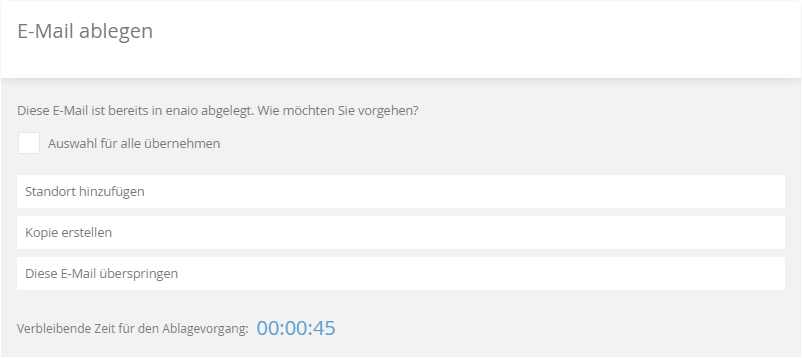
In the File e-mail form that opens, you have the following options:
Apply selection to all
If you file several e-mails at the same time, you can have the selection you made in the form applied to all other duplicates in this filing process by enabling the checkbox.
Add location or create reference document
Instead of filing the e-mail in the enaio® filing system again, a link to the existing e-mail is created. A reference document is created (see Reference Documents) or another location is added (see Documents with Multiple Locations) depending on the system configuration or the kind of object type.
The e-mail is filed as a link and displayed in the selected filing location.
The e-mail is assigned to the enaio® archived category in Microsoft Outlook.
Create copy
The e-mail is filed again in the enaio® filing system, in addition to the existing e-mail. This means that it exists multiple times in the enaio® filing system.
The e-mail is filed as a copy and displayed in the selected filing location.
The e-mail is assigned to the enaio® archived category in Microsoft Outlook.
Skip this e-mail
The e-mail is not filed and the filing process for this e-mail is canceled.
The filing process for this e-mail is canceled.
The remaining time in the filing process is shown in the File e-mail form and in the index data form by means of a display. If the time elapses without the e-mail being filed, the filing process is canceled without any result.
-
Filing e-mails from Microsoft Outlook with automatic deletion
enaio® Outlook Add-In NG also offers the option to have e-mails automatically deleted from Microsoft Outlook after they are filed in enaio®. They are then moved to the deleted objects folder in Microsoft Outlook.
If you want to use the Delete e-mails from Outlook after creation function, you will need to activate it in the enaio® Outlook Add-In NG settings dialog on the Settings tab. Open the settings dialog in Microsoft Outlook by clicking the  Arrow icon in the enaio® ribbon group.
The Delete e-mails from Outlook after creation function can be preset by the administrator. Users can no longer enable or disable the function themselves in the settings dialog in this case.
Filing e-mails from GroupWise
The optional extension enaio® GroupWise Add-On NG allows enaio® webclient as a desktop application users to file e-mails and appointments from GroupWise in enaio®.
The selected object (an e-mail or an appointment) is assigned to an e-mail document type in enaio® and filed in desktop application of enaio® webclient at the current open filing location. If several object types are available for storage at the filing location, you can choose the desired object type via a selection dialog.
enaio® GroupWise Add-On NG also offers the option to automatically delete e-mails from GroupWise after they are filed in enaio®. They are then moved to the deleted objects folder in GroupWise. If you want to use this function, you will need to enable it in the enaio® GroupWise Add-On NG settings dialog.
The function can be preset by the administrator. Users can no longer enable or disable the function themselves in the settings dialog in this case.
Filing E-Mail Attachments
enaio® webclient as a desktop application users have the option to use the enaio® Outlook Add-In NG and enaio® GroupWise Add-On NG to file e-mail attachments separately in enaio®.
Filing e-mail attachments from the classic version of Microsoft Outlook
enaio® webclient as a desktop application, Microsoft Outlook, and enaio® Outlook Add-In NG must be installed. The enaio® webclient as a desktop application checkbox must be ticked in the enaio® Outlook Add-In NG settings.
-
Open enaio® webclient as a desktop application and select a filing location for an e-mail attachment.
-
Open the e-mail in Microsoft Outlook and select the e-mail attachment.
The Attachments ribbon tab is displayed.
-
Click the
Create attachment in enaio® icon in the enaio® ribbon group.The New element in external tray form opens in enaio® webclient as a desktop application.
-
In the form, you have the following options:
-
Later button
If you click the Later button, the attachment will be transferred to the external tray of enaio® webclient as a desktop application. You then have the option to file the attachment in the enaio® filing system at a later time (see Filing Documents from the External Tray).
-
Next button
The selected attachment will be filed in the opened filing location. If you have multiple filing locations open in enaio® webclient as a desktop application, you must first select the one you want from the list of available filing locations.
-
Open location in new tab checkbox
If the Open location in new tab checkbox is ticked, a new tab is opened for the filing of the attachment in the desktop application of enaio® webclient.
The Select type for element from external tray form is opened.
-
-
Select an appropriate object type for the attachment to be filed in the form by clicking an entry in the list of object types.
If you click the Cancel button, the attachment is transferred to the external tray of enaio® webclient as a desktop application.
The Creation dialog with an index data form and an Add content area with a
Plus icon will open in the enaio® webclient as a desktop application workspace. -
Enter your data in the fields of the index data form and then click the
Save icon.
The e-mail attachment is filed and displayed in the selected filing location.
Filing of the e-mail attachment is confirmed by a message.
Filing e-mail attachments from GroupWise
enaio® GroupWise Add-On NG offers enaio® webclient as a desktop application users the option to file an e-mail’s attachments from GroupWise separately in enaio®. Filing attachments is done in exactly the same way as it is in Microsoft Outlook (see above). Once you click the filing tray icon in Groupwise, the subsequent steps are carried out in enaio® webclient as a desktop application. All the attachments of an e-mail can then be filed in the current open location in enaio® webclient as a desktop application. If several object types are available for storage at the filing location, you can choose the desired object type via a selection dialog.
 on the right.
 areas. Use the toolbar to show all hidden areas at once:
