enaio® for-outlook
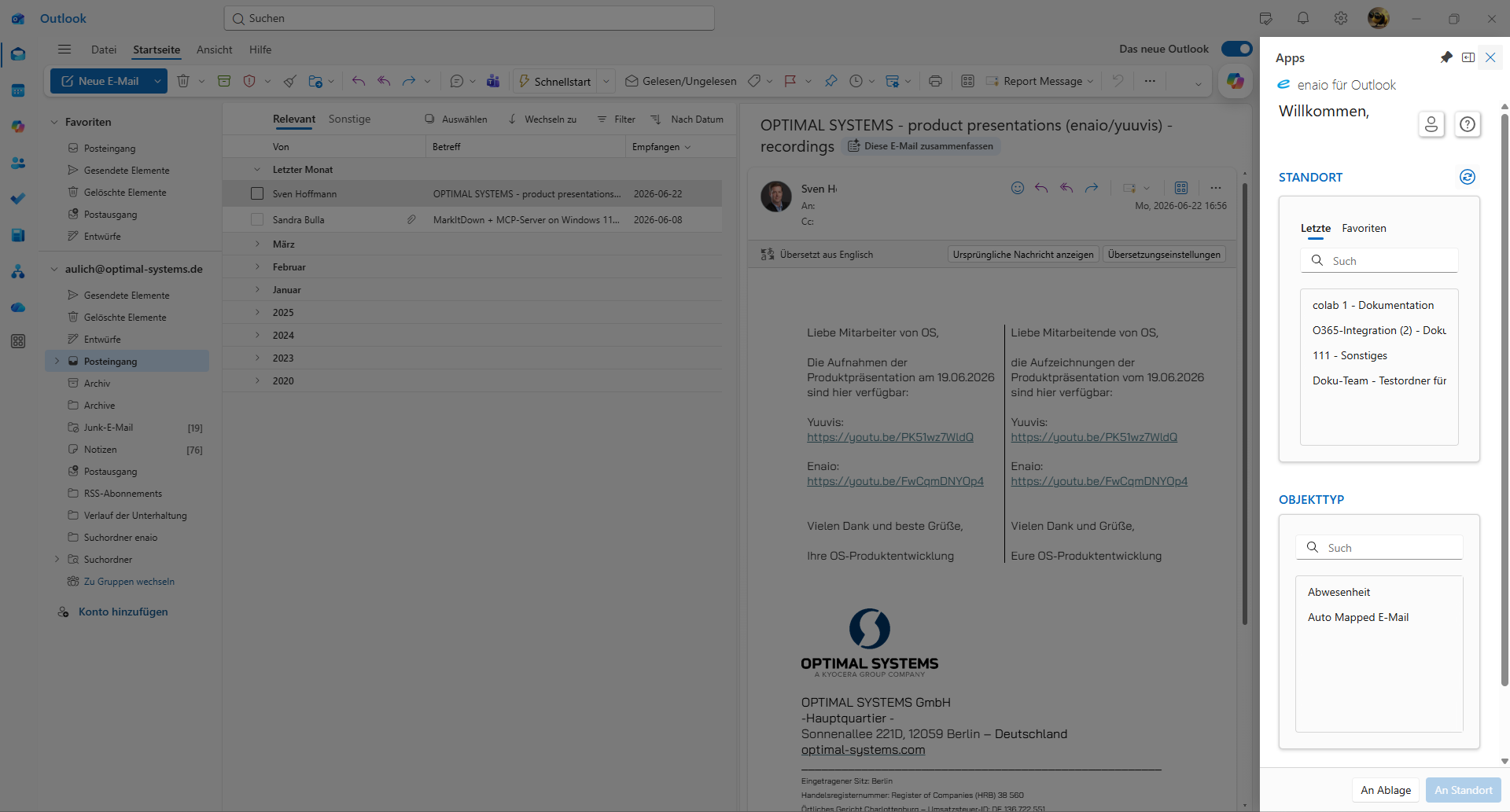
enaio® for-outlook (formerly enaio® outlook-web-add-in) allows you to save one or multiple e-mails from the new Microsoft Outlook to enaio®.
enaio® for-outlook supports all enaio® clients. There is no need to have an enaio® client installed or open on the device running the new Microsoft Outlook.
The feature is integrated into the Microsoft Outlook reading area. Microsoft's Help section explains how to add this feature to the new Microsoft Outlook (see Microsoft support  ).
).
If enaio® for-outlook does not display in Microsoft Outlook, click the  Apps icon in the header of the Outlook reading area, and then, in the menu that opens, click the
  enaio® logo enaio® for-outlook. Click the
  Pin icon to pin enaio® for-outlook to the Microsoft Outlook interface.
Since the new Microsoft Outlook on Android or iOS does not support features such as enaio® for-outlook, the instructions described here cannot be followed on mobile devices running Android or iOS. E-mails that were stored with enaio® for-outlook under Microsoft Windows in enaio® are also available in enaio® mobile.
-
Your administrator needs to provide enaio® for-outlook for the new Outlook and add you to the group of authorized users.
-
enaio® for-outlook must be integrated into and opened in the new Microsoft Outlook.
-
If you have not yet logged in to enaio®, you will need your enaio® login data.
 Steps for filing one or multiple e-mails from enaio® for-outlook to enaio® using
-
In the new Microsoft Outlook, select one or multiple e-mails that you want to file in the enaio® directory.
-
Depending on your system configuration, you may still need to log in to enaio®.
You can tell whether you are logged in or not, for example, by whether or not you can select a filing location in enaio® for-outlook in the areas Recent or Favorites.
If you are not logged in, click or tap the
 Login icon to log in.
The enaio® login form will now open.
-
Enter your enaio® user name and the corresponding password in the fields on the login screen, and then click or tap the Login button.
If you are unable to log in, clear your browser's cache and try logging in again.
You have logged in to enaio® and can now file e-mails in enaio®.
-
You have the following options for filing e-mails in enaio®:
-
Tray of enaio® client/internal tray of enaio® webclient
If you are not yet sure where you want to permanently file the e-mails in enaio®, you can temporarily save the e-mails in the enaio® client folder or in the internal tray at enaio® webclient and move them to the desired location later. To do so, click (or tap) the Send to tray button.
The e-mail(s) are forwarded to the enaio® inbox without any additional steps.
The e-mail(s) is/are assigned in Microsoft Outlook to the category Created in enaio®.
-
Last
You can file the e-mail(s) to one of the ten most recently selected filing locations. In the Recent tab, select the desired filing location.
- Favorites
You can file the e-mail(s) to one of the locations you previously marked as a favorite in enaio®. In the Favorites tab, select the desired filing location.
If you have selected multiple e-mails, the tabs Last and Favorites will only display filing locations that allow you to file multiple e-mails.
-
-
You can use the
 Search field to reduce the length of the lists. With a click or tap of the
  Refresh locations icon, you can refresh the display of the filing lists.
Once you have selected a filing location, that location will remain preselected in the selection box for the next eight hours. This means that even if you leave or close enaio® for-outlook and then reopen it, the last selected filing location will be displayed again. The complete list of results will not be displayed again until you clear the preselected filing location from the search field.
Depending on the selected filing location, the OBJECT TYPE area displays the available object types for filing the e-mails.
-
If several object types are shown, select an object type and click (or tap) the Send to location button.
The object types that are shown depend on the configuration of the filing location. The configuration is defined by your administrator. Ask your administrator if you do not know which object type to select. If no object type is available, then an e-mail cannot be filed in the selected filing location.
The e-mails are filed and indexed at enaio®.
The e-mail(s) is/are assigned in Microsoft Outlook to the category Created in enaio®.
You will be notified of whether the upload was successful or failed. E-mails that could not be saved will be skipped separately. You will receive information about which e-mails were successfully archived and which ones failed to be archived.
File e-mails to enaio® as soon as you create them
You can also file e-mails from the new Microsoft Outlook to enaio® while you compose them. To do this, open enaio® for-outlook during the creation process and select a filing location and object type (see Filing one or multiple e-mails).
File e-mails from the new Microsoft Outlook to enaio® client using drag-and-drop
You can drag and drop individual e-mails from the new Microsoft Outlook into an open folder or register or into the enaio® client inbox. When you drop the e-mail at the desired filing location, a menu will open showing the object types available for storage; you must select the appropriate object type from this menu. The administrator specifies the folders or registers in which e-mails can be filed, whether e-mails are indexed automatically, or whether the index data form is opened and users are allowed to edit e-mails individually or all e-mails.
E-mails that have failed to be filed in enaio® are categorized as Error creating in enaio® in Microsoft Outlook. If further filing attempt is successful, the categorization in Microsoft Outlook is automatically changed accordingly.
 on the right.
 areas. Use the toolbar to show all hidden areas at once:
