The quick access toolbar is located above the ribbon, but can also be shown below it.
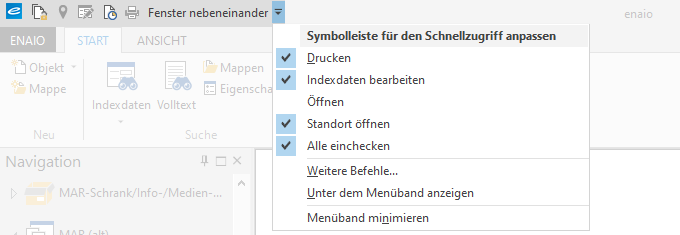
The toolbar contains only a few default commands, but can be easily customized to include further commands you want to quickly access when completing your work.
After updating enaio® client, changes to the toolbar and ribbon are automatically reset.
To customize the quick access toolbar, follow these steps
To customize the toolbar, you need a corresponding system role.
-
Click the
 Drop-down arrow on the right of the toolbar.
 -
Select More commands in the drop-down menu.
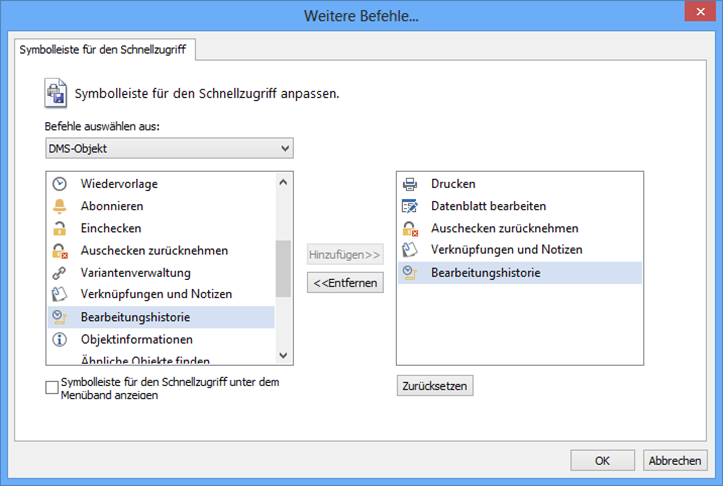
The More commands dialog will open.
-
Select a command and assign it to the toolbar by pressing Add.
The commands are divided into groups to ensure a clearer overview. Click Reset to return the toolbar to its default settings.
-
Click OK.
The toolbar is customized.
 on the right.
 areas. Use the toolbar to show all hidden areas at once:
