An event is a script that you can assign to an event during a workflow process.
Further information on JavaScript can be found in the developer documentation:
-
JavaScript for enaio®,
-
JavaScript for enaio® server,
-
JavaScript for .enaio® webclient,
-
Debugging JavaScript.
Client scripts and server scripts can be in JavaScript or VBScript. JavaScript is recommended. Scripts for enaio® webclient must be in JavaScript.
The sequence of an activity in a workflow process is divided into events according to the following schema:
|
StartActivity |
Server script |
After a process has been started, or after an activity and its transitions have been completed. Before a user sees the work item in the inbox. |
|
StartWorkItem |
Server script |
Before an activity is personalized for a user. The event is not executed for activities that have already been personalized. |
|
GetWorkItemParams |
Server script |
Before the variables and other parameters of an activity are retrieved from the client and the application screen is subsequently opened. |
|
BeforeOpen |
Client script |
Before the client opens the application form. The event can additionally be used to call an object via the object ID in the content/detail preview. Script code: scriptresult.ContextObjIdent = ID |
|
ButtonClick |
Client script |
After the user has clicked a button on the application form. The event can additionally be used to call an object via the object ID in the content/detail preview. Script code: scriptresult.ContextObjIdent = ID |
|
OnEnterPage |
Client script |
After the user has activated the page of a page control on a form. |
|
SimulateMaskEdit |
Simulation script |
The script is only executed in the workflow simulation program. |
|
BeforeCancel |
Client script |
After the user has clicked the 'Close' button. The work item remains personalized. |
|
BeforeForward |
Client script |
After the user has clicked the 'Forward' button. The script can specify whether the application form remains open for further entries. |
|
EndActivity |
Server script |
After the activity has finished, before the transitions have been made. |
|
TimerFired |
Server script |
After the dunning period of the corresponding activity has expired. |
You can implement functions for server scripts in a global server script, a server script in JavaScript, and a server script in VBScript.
Global client scripts can be created for enaio® client or for enaio® webclient; a client script in JavaScript and a client script in VBScript are created for enaio® client.
Global scripts are always appended to the respective event script and run together.
Activities which run without an application can only have server scripts associated with. Activities without an application comprise loops, routes, the start activity, and the end activity.
Forms can be assigned the following events:
|
ButtonClick |
After the user has clicked a control element. |
|
EnterPage |
After the user activates a tab. |
|
LeavePage |
After the user exits a tab. |
|
ValueChanged |
After the user has changed a value in one entry field. |
|
FocusGained |
After the user has focused on one control element. |
|
BeforeAddRow |
Before the user has added a table row. |
|
BeforeDeleteRow |
Before the user has deleted a table row. |
|
CellValueChanged |
After the user has changed a value in one table cell. |
|
CellFocusGained |
After the user has focused on one table cell. |
The simulation script is used in the workflow simulation program to assign values to variables for activities.
Creating Events
Events are created using the model editor on the Events tab in the event editor.
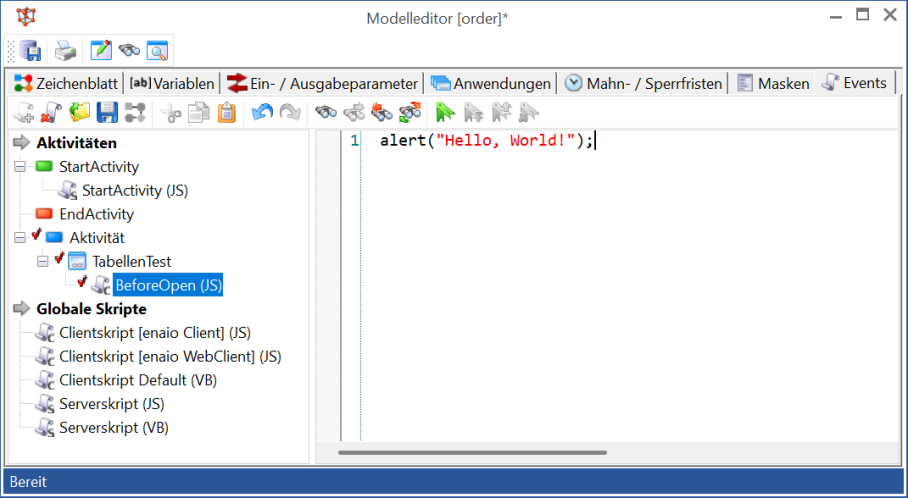
In the Activities area, the event editor lists all of a model's activities. The Global scripts area, which is used to manage global scripts, is also displayed.
The script language is marked. Scripts that have not yet been saved are highlighted in red.
- Select an activity.
- Select an event in the content menu or by clicking the Add event button.
The event is added to the Activities area.
-
Specify the script language via the context menu: JavaScript or VBScript.
A default setting can be entered via Settings.
- Define the script.
- Save the model.
You will find the following buttons on the toolbar of the event editor:
|
|
Add event
Select a script to add it to the selected activity. |
|
|
Delete
Delete the selected script. |
|
|
Import script code
Open a script from a file. Opening is canceled if the event type from the file does not match the selected event type. |
|
|
Export script code
Save the script in a file. |
|
|
Switch to activity
Displays the selected activity on the drawing page. |
|
|
Cut
Cuts out the selected text. |
|
|
Copy
Copies the selected text to the clipboard. |
|
|
Paste
Pastes the text from the clipboard to the current cursor position. |
|
|
Undo
Undo the last action. |
|
|
Restore
Redoes the last action. |
|
|
Find
Enters a search term and a search direction. |
|
|
Repeat search
Repeats the search. |
|
|
Search before
Repeats the search in the opposite search direction. |
|
|
Replace
Enter a search term and a term to replace it with. |
|
|
Show/hide bookmarks Place a bookmark at the current line or remove it. |
|
|
Next bookmark
Switches to the next bookmark. |
|
|
Previous bookmark
Switches to the previous bookmark. |
|
|
Delete all bookmarks
Deletes all bookmarks. |
|
|
Syntax highlighting
Choose the script language and syntax highlighting. |


Press Ctrl+G to specify the line number you want to go to.
Activate IntelliSense by pressing Ctrl+Space. IntelliSence enables automatic completion of commands and offers context-sensitive lists containing code and scripting elements.
Press F7 to run a syntax check.
Use Ctrl + mouse wheel to change the font size in the editor window.
 on the right.
 areas. Use the toolbar to show all hidden areas at once:
