enaio® lumee-administrator
enaio® lumee-administrator is used to configure and control the indexing of object types for data reference in enaio® lumee.
An object type-specific batch is created for object types that are to be included, which carries out the indexing of existing and newly created objects in the vector database.
The 'Administrator: Configure entire system' system role is required in order to access enaio® lumee-administrator. The useVectorStore parameter must have the value true.
The call of enaio® lumee-administrator is made via the following address:<service-manager-ip>:<port>/admin
Default port of the 'lumee' service: 8360
Icons in the header can be used to select the language and switch between dark and light mode.
Use the header to switch between the areas:
-
All object types of the object definition are displayed. Batches are created for object types, which determine which objects are indexed.
-
All running tasks for indexing are displayed. Failed indexing is also displayed.
-
All users' chats are displayed and can be searched and analyzed.
-
Information on separate objects can be called up.
-
The token usage for LLM chat and embedding calls is displayed.
-
Data from the enaio® lumee configuration is displayed.
Context help can be displayed for each area and dialog.
Batches
The display in the Batches area can be restricted to the object types for which a batch has already been configured using the function bar.
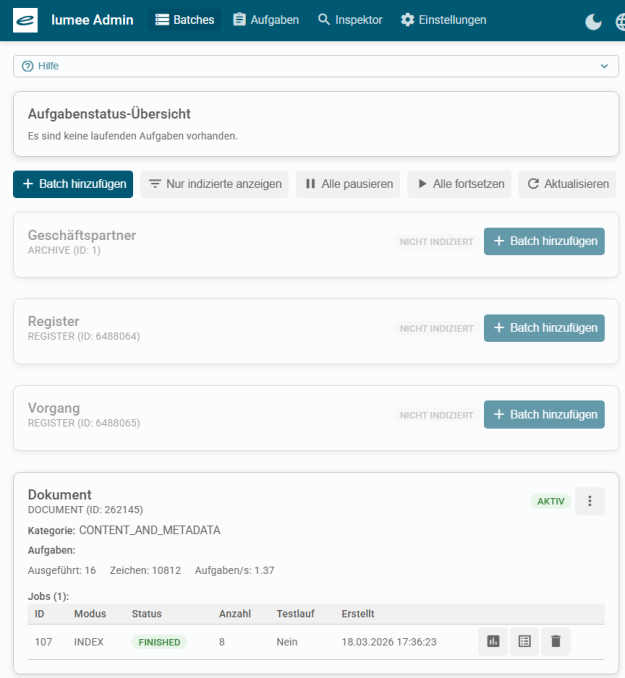
Adding Batches
Batches control the indexing of existing and newly created objects of the object type.
Object types for which batches are created require the Indexing for AI search property in enaio® editor. The batch is not executed without this property.
A batch for the corresponding object type is created via + Add batch of a displayed object type.
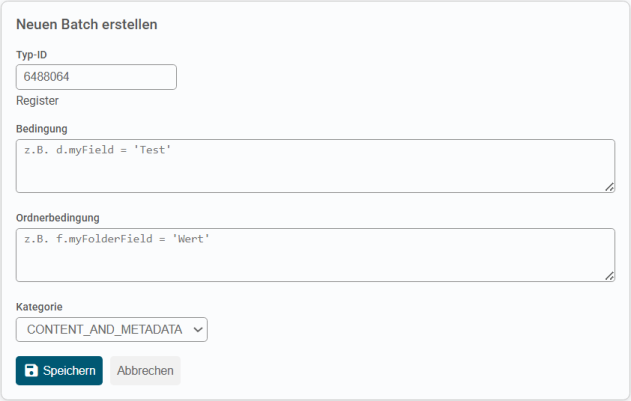
| Parameter | Value |
|---|---|
| Type ID |
The type ID is prepopulated. Select + Add batch from the toolbar. Then you must enter the type ID. |
| Condition |
Object conditions can be specified for indexing. Object conditions refer to the data of the objects of the object type. Only objects that fulfill the conditions are indexed. |
| Folder condition | Folder conditions refer to the data of the folder in which objects are created. |
| Category | Index data can be indexed for folder and register types, index data, content or index data, and content for document types. |
Batch conditions are validated against the object definition before saving. If conditions are not valid, the batch is not saved.
After saving the batch, indexing is started immediately.
The batch is marked as 'enabled'. The running tasks are displayed. Click a task to display the tasks with the corresponding status in the Tasks area.
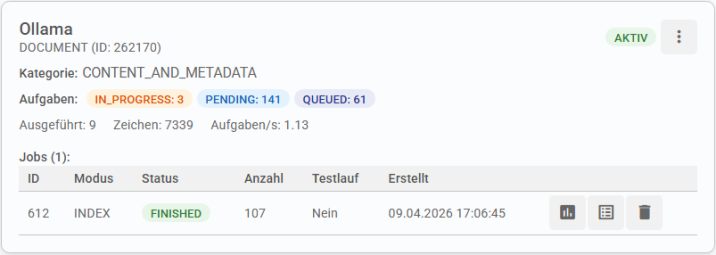
The status of the indexing job is displayed. Once the indexing job is complete, it receives the status 'finished'. A report and the detailed log can be displayed. The report shows the batch properties, the job properties, and the action overview. The log shows all objects and actions.
The indexing job can be deleted. Deleting deletes the report and the log.
All jobs that have been executed for the batch are displayed in the batch view. Completed jobs are automatically deleted by default after 14 days.
Batch Conditions
Conditions can refer to the data of the objects and to the data of the folders in which objects are created.
Object conditions and folder conditions can be combined. They are logically linked by AND.
Without conditions, all objects are indexed according to the category.
Object conditions
Object conditions – example:
d.date = > '2025-01-01'
Only objects that are indexed in the 'date' field with a date after 1.1.2025 are indexed.
Object type fields are specified with the alias 'd'.
Folder conditions
Folder conditions – example:
f.status = 'active'
Only objects that are indexed with 'active' in the 'status' field are indexed.
Folder type fields are specified with the alias 'f'.
Further information on conditions can be found in the developer documentation.
Editing and managing batches
Use the menu icon to open the list of editing features for the batch.
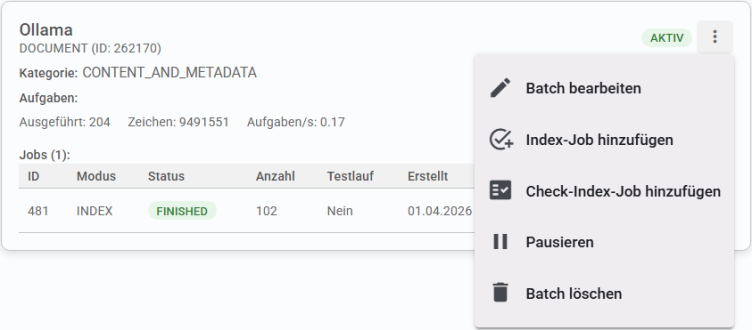
Edit batch
Open the batch via Edit batch.
Object conditions, folder conditions, and category can be added and modified.
Changes have no effect on existing indexing. Changes only affect the indexing of newly created objects.
Adding index jobs
An index job can be used to add conditions for the object type. If batch conditions are configured, the job conditions are logically linked by AND.
Object conditions and folder conditions can be added as job conditions.
Example:
Batch condition: d.date = > '2025-01-01'
Index job condition: d.status = 'active'
Indexing condition: (d.createdDate > '2025-01-01') AND (d.status = 'active')
Index jobs can be executed in a test run. Only one log is created in the test run. Data is logged for all objects that are affected by the change.
Index jobs lead to a reindexing of existing objects. The indexing conditions of newly created objects are not modified.
All jobs that have been executed for the batch are displayed in the batch view. Completed jobs are automatically deleted by default after 14 days.
Adding Check Index Jobs
An index job is used to check all existing indexes for the object type.
- Existence check
The system checks whether objects still exist, i.e., whether they have been deleted or moved to the recycle bin.
If objects no longer exist, the indexing is deleted. - Condition check
The system checks whether objects still meet the conditions of the batch. If this is not the case, the indexing of the corresponding objects is deleted. - Change date check
The system checks whether the change date of the objects matches the date of the last indexing change. If this is not the case, the indexing of the corresponding objects is updated.
Check index jobs can be executed in a test run. Only one log is created in the test run. Data is logged for all objects that are affected by the change.
All jobs that have been executed for the batch are displayed in the batch view. Completed jobs are automatically deleted by default after 14 days.
Pause
Pausing a batch stops running indexing and does not index new or changed objects.
Paused batches can be enabled again via Resume. Running indexes are resumed, and new and changed objects are indexed.
You can also pause all batches and resume all batches via the function bar.
Deleting Batches
Deleting a batch deletes all the data in the batch: the indexes created by the batch, all running indexes, and the logs.
The data is permanently deleted and cannot be recovered.
Tasks
In the area Tasks, running tasks for indexing and failed indexing tasks can be displayed.
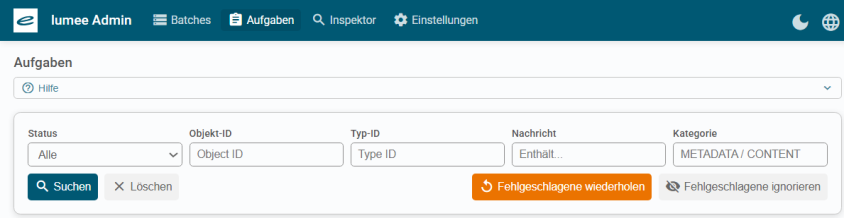
Filters can be used to search for tasks. All tasks are displayed without a filter.
The following functions can be executed:
-
Repeat failed
Tasks with the status FAILED are reset to the status PENDING. This means that an attempt is made to index the corresponding objects again during subsequent indexing.
-
Ignore failed
Tasks with the status FAILED are reset to the status IGNORED. This means that the objects are not indexed again during subsequent indexing.
-
Repeat ignored
Displayed tasks with the status IGNORED are reset to the status PENDING. This means that an attempt is made to index the corresponding objects again during subsequent indexing.
Inspector
Data for an object can be displayed in the Inspector area.
The object is specified via the object ID.
With the Include text display option, the text content is also displayed for documents.
The Remove from index function can be executed for the object. This deletes the indexing of the object.
Chats
The Chats section lists all chats.
The list includes the user, time, user message, duration, and model.
Chats with error messages are marked with a red exclamation point. Users' feedback labeling the answer as positive or negative is also recorded.
Clicking on an entry displays the user's message, the agent's response, and technical details.
You can open the entire conversation by clicking the icon in the last column.
By default, chat data is deleted after 90 days via the lumee:conversation:retention-days parameter in the lumee-prod.yml file. The value can be changed.
Chat Filters
The chat list can be filtered. Filters are combined using AND.
When entering text in the User message, Agent response, and Error Message fields, the system also searches for partial strings. The text is not case-sensitive.
You can specify time periods using a calendar and select the Errors only option.
Click X Delete to delete all filters.
Chats conducted via the /api/prompt and /api/promptstream endpoints with the optional parameter "useConversation": false are not saved.
Usage
The Usage section displays token usage for LLM chat and embedding calls.
The display depends on the filter settings.
The number of calls, the number of input tokens, and the number of output tokens are displayed for each one.
Depending on the level of detail, the metric displays this data graphically. A distinction is made between LLM chats, user query embeddings, and index embeddings. Tooltips display the number in detail.
A list of token usage for the calls is displayed under the metric.
The list includes the time period, user, call type, model, total calls, input tokens, and output tokens.
The lumee:maxInputTokens parameter in the lumee-prod.yml file sets a limit on the number of tokens in a user message. Default: 131,000. The value can be changed.
Users may receive a notification.
Usage Filters
The usage list can be filtered. Filters are combined using AND.
You can specify a time period, user, call type, and model as filter criteria. The filters are applied to the displayed views, the metric, and the list.
Click X Delete to delete all filters.
The 'Index embedding' call type is executed by the 'system' user.
Settings
The Settings section displays technical information about the configuration of enaio® lumee.
The values can be modified via the lumee-prod.yml configuration file located in the enaio® service-manager \config directory.
The following data is relevant for indexing by enaio® lumee-administrator:
 on the right.
 areas. Use the toolbar to show all hidden areas at once:
