Dashlets in enaio®
Dashlets are customizable, context-sensitive areas which can be integrated into enaio®.
They consist exclusively of static web resources such as HTML files, JavaScripts, CSS, and images. Additional content such as enaio® detailsviewer, the content preview, or external sources can be embedded in dashlets, for example, via iFrames.
Accompanying information and more details on creating dashlets will be supplied by the OPTIMAL SYSTEMS professional services team upon request.
Dashlets that were developed for enaio® client cannot be used in enaio® and enaio® webclient due to the different way they are integrated and communicate with enaio® webclient as a desktop application. This is also the case the other way around.
Distribution of Dashlets
A standard web server can be used to distribute dashlets. enaio® offers two locations where static web resources can be hosted:
- In the public directory of enaio® gateway: ...\apps\os_gateway\public.
- In enaio® service-manager: . ..\config\apps\<dashletprojekt>\public
The directory structure in enaio® service-manager may need to be created beforehand, as it does not exist in the default installation.
Distribution via enaio® service-manager
To distribute dashlets enaio® service-manager, create a \apps directory in the \config directory of enaio® service-manager, a project directory in this directory, and a \public directory in this project directory:
\services\service-manager\config\apps\<dashletprojekt>\public
Place all data for the dashlet project in the \public directory, including further subdirectories if necessary.
The dashlet can be accessed via enaio® gateway as well as via the 'gateway-ng' service.
URLs:
http(s)://<gateway>:<port>/resources/apps/<dashletprojekt>/public/<Dateibezeichnung>
http(s)://<gateway-ng>:<port>/resources/apps/<dashletprojekt>/public/<Dateibezeichnung>
The dashlet data, like the configuration files in the \config directory, can be managed via Git.
The resources are delivered via the 'dms' service. It needs to be installed.
Furthermore, a login is required to access static resources in enaio® service-manager. In contrast to enaio® gateway, unauthorized access to the resources is currently not possible.
If several enaio® service-manager are installed, the data must be available for all installations, as load balancing/failover takes place between the instances.
Distribution via enaio® gateway
If enaio® webclient is connected via the 'gateway-ng' service, then distribution must take place via enaio® service-manager, as there is no external access to enaio® gateway.
To distribute dashlets via enaio® gateway, place the pages for dashlets in a directory in the \services\OS_Gateway\apps\os_gateway\public directory.
Assign the dashlets unique names so that no existing application with the same name is overwritten.
The home URL that is specified in enaio® enterprise-manager has the following structure:
http(s)://<gateway>:<port>/<dashlets>/<Dateibezeichnung>
enaio® client
Up to ten additional dashlets can be integrated into enaio® client using enaio® enterprise-manager. Several dashlets can be stacked.
For every integrated dashlet, an additional button will be added in the ribbon on the VIEW tab in enaio® client.
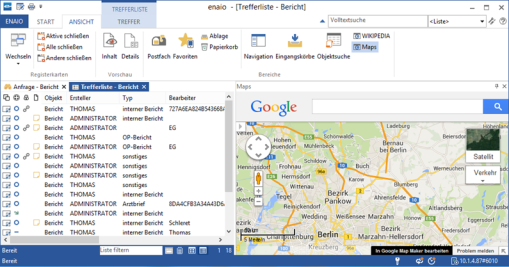
They are controlled using a schema with which a URL address to be called is transferred in the information of the currently selected object. If required, simple web applications can be used to extend, change, or forward the URL address.
Dashlet content can be loaded when starting a client, and can therefore be used to present a unique welcome page, for example. In addition, these dashlets are not informed of modified contexts via URL parameters, but instead receive them via a JScript callback, without reloading the page. In order for dashlets to show the content right when a client is launched, set the Load at start parameter to Yes in enaio® enterprise-manager under Server properties > Services > Dashlet. The parameter can be customized for each dashlet.
Before users are able to show/hide a newly configured dashlet by clicking the respective button, they have to reset the window layout of enaio® client (View > Settings > Workspace).
Configuring Dashlets for enaio® client
In enaio® enterprise-manager, enter the URL address for the dashlets, the title, and, optionally, an icon that will be displayed in enaio® client in the Server properties > Category: Services area. All icons that were integrated using enaio® editor can be indicated by way of the icon ID.
When integrating viewing services in a dashlet, you can add further information to the URL address:
|
URL parameter |
Description |
|---|---|
|
{objectident} |
Object ID |
|
{objecttype} |
Object type |
|
{userid} |
User ID |
|
{userguid} |
User GUID |
|
{sessionguid} |
Session GUID |
|
{servername} |
Server name |
|
{serverport} |
Server port |
|
{pagecount} |
Number of the page which you want to display. |
A question mark is placed in front of the parameters, and they are separated by the '&' character.
Example:
http://localhost:8070/documentviewer/app/viewer/{objectident}/?servername={servername}&serverport={serverport}&sessionGuid={sessionguid}
becomes
http://localhost:8070/documentviewer/app/viewer/213/?servername=localhost&serverport=40000&sessionGuid=AB617AF75F464568B502F7700F1C10F4
The sessionguid, servername, and serverport parameters are required for session GUID authentication. If any of these parameters is missing, authentication will be attempted using the next method (NTLM, Kerberos, Basic Authentication).
You can also use the parameter ?q={searchterm} to transfer a search term. The documents without pages are then highlighted in color in enaio® documentviewer.
With the following URL, for example, the index data and basic parameters of documents selected in hit lists, folder lists, or register lists will be displayed in a dashlet:
http://localhost:8060/osrest/api/documents/raw/{OBJECTIDENT}/?format=html&sessionguid={sessionguid}&servername={servername}&serverport={serverport}
enaio® webclient and enaio® webclient as a desktop application
Dashlets are not yet available at this time in enaio® mobile and, in general, are also not available on mobile devices; enaio® webclient is also not yet available on mobile devices.
Dashlets for enaio® webclient and enaio® webclient as a desktop application are integrated into the preview area. In the configuration, you can assign dashlets to client types (enaio® webclient or enaio® webclient as a desktop application), object types, users or groups, titles, and icons.
We offer the dashlet API for communication between a dashlet and enaio® webclient or enaio® webclient as a desktop application. Special events and methods arrange for the exchange of information and offer various interactions. The backend services along with the DMS service and enaio® appconnector can also be used.
Localizing Dashlets
The titles of dashlets in enaio® client can be localized. Open the Localization dialog from enaio® administrator via Setup > Dashlet name.
All dashlets are displayed, along with the fields for the label in each of the supported languages for each dashlet.
The titles of dashlets in enaio® webclient are specified and localized using the settings in the configuration file dashlet.json.
 on the right.
 areas. Use the toolbar to show all hidden areas at once:
